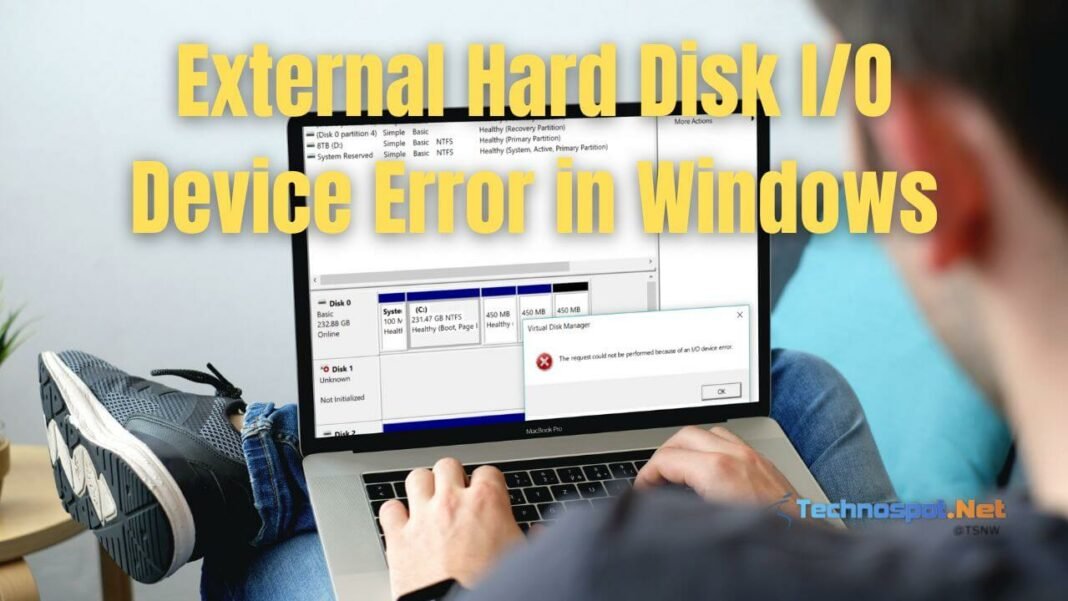
When your computer flashes an I/O device error, it’s not just a cryptic message; it's a critical communication breakdown. This issue, preventing your system from reading or writing data to a drive, disk, or external media, can quickly escalate from a minor annoyance to a major data loss threat. Understanding I/O Device Errors & Their Causes is the first step toward regaining control and protecting your valuable information.
At a Glance: What You Need to Know About I/O Errors
- What it is: An Input/Output (I/O) device error is when your computer can't transfer data to or from a storage device.
- Common culprits: It can be anything from a loose cable to serious hardware damage, outdated software, or even a sneaky virus.
- The message: Often appears as "The request could not be performed because of an I/O device error," "The disk is not accessible," or "I/O error reading/writing the file system."
- First steps: Always start by checking physical connections and restarting your system.
- When to worry: If the drive makes unusual noises, isn't detected, or data is critical, stop troubleshooting and seek professional help.
Decoding the Digital Distress Signal: What Exactly Is an I/O Device Error?
Imagine you're trying to talk to someone, but there's static on the line, or perhaps they're speaking a completely different language. That's essentially what an I/O device error is for your computer. I/O stands for Input/Output, referring to any operation where your computer sends information to or receives information from a piece of hardware – be it reading a file from your hard drive, writing a document to a USB stick, or even communicating with an external SSD.
When an I/O error occurs, it means this vital data exchange has failed. Your operating system, typically Windows, can't complete the read or write command it sent to a storage device. This communication breakdown isn't just an inconvenience; it can render your data inaccessible, lead to frustrating system crashes, or indicate a deeper hardware malfunction brewing beneath the surface.
The Language of Trouble: Common I/O Error Messages You Might See
I/O errors often present themselves with clear, albeit alarming, messages. While the exact wording might vary slightly depending on your operating system or the specific situation, you'll frequently encounter warnings like:
- "The request could not be performed because of an I/O device error": This is perhaps the most direct and common way your system tells you it failed to complete a data transfer.
- "The disk is not accessible": This message often accompanies an I/O error, indicating that your computer can see the drive but can't access its contents due to the underlying communication issue.
- "I/O error reading/writing the file system": This points specifically to problems with how your computer understands and organizes data on the drive, making files unreadable or impossible to save.
These messages are your system's cry for help, signaling that something is preventing it from performing basic data operations.
Why Your Device Is Speaking in Error: Understanding the Root Causes
I/O device errors aren't a single problem; they're a symptom with a multitude of potential causes. These can range from simple, easily fixable glitches to complex hardware failures that demand professional attention. Pinpointing the exact cause is crucial for effective troubleshooting.
Let's break down the most common culprits:
- Loose or Faulty Connections: The simplest cause is often the most overlooked. If the USB, SATA, or power cables connecting your drive are loose, damaged, or of poor quality, the digital signal can be disrupted. Think of it like a frayed phone cable causing static – the message simply can't get through clearly.
- Outdated or Corrupted Device Drivers: Drivers are the software "translators" that allow your operating system to communicate with your hardware. If these drivers are outdated, damaged, or incompatible, your computer won't know how to properly interact with your drive, leading to I/O errors.
- Hardware Malfunction: Sometimes, the device itself is failing. This could be due to physical damage, wear and tear on mechanical components (for HDDs), or degradation of internal electronics (for SSDs). This is a more serious cause, often leading to permanent data loss if not addressed.
- Incorrectly Configured BIOS Settings: The Basic Input/Output System (BIOS) is your computer's fundamental firmware, responsible for initializing hardware during startup. If certain settings related to storage controllers are misconfigured, it can prevent proper communication between your OS and your drives.
- Software Conflicts or Third-Party Applications: Occasionally, a newly installed program, a security suite, or even background processes can interfere with your system's ability to access drives, leading to I/O errors. This is particularly common with software that deeply integrates with system functions.
- Power Failure or Improper Ejection: Abrupt power loss or yanking an external drive without using the "Safely Remove Hardware" option can interrupt ongoing read/write operations. This can corrupt the file system or even damage the drive's internal components, making future access difficult or impossible.
- Malware Infection: Malicious software can wreak havoc on your system, altering file systems, encrypting data, or blocking access to drives as part of a ransomware attack or other nefarious activities.
- Corrupted File System or Bad Sectors: The file system (like NTFS or FAT32) is how your drive organizes data. If this system becomes corrupted due to errors or improper shutdowns, your computer won't be able to map out where files are. Similarly, "bad sectors" are small, damaged areas on the drive's surface that can no longer store data reliably, making files in those areas inaccessible.
- Firmware Corruption or Outdated Firmware: Just like your operating system, storage devices have their own internal software, called firmware. If this firmware is buggy, outdated, or corrupted, the drive itself might malfunction, leading to I/O errors.
- Physical Damage to the Storage Device: This is often the most severe cause. Dropping an external drive, exposing it to extreme temperatures, or internal mechanical failure can cause irreparable damage, manifesting as critical I/O errors.
Decoding Distress Signals: Symptoms of an I/O Device Error
Recognizing an I/O error isn't always about seeing a specific pop-up message. Often, the first signs are behavioral changes in your storage devices or overall system performance. Keeping an eye out for these symptoms can help you identify a problem early:
- External Drive Woes:
- Your external drive frequently disconnects without warning.
- Windows doesn't recognize the drive at all, or it appears and disappears intermittently.
- File transfers to or from the drive are unusually slow or simply fail.
- The system prompts you to format an external drive that previously worked fine and contained data.
- System Access Problems:
- A drive (internal or external) doesn't show up in 'This PC' or 'Disk Management.'
- Windows actively prevents you from accessing the drive's contents.
- I/O errors appear consistently after installing new software or system updates.
- Data Inaccessibility:
- Files you know are on the drive become unreadable or report errors when you try to open them.
- Your system is unable to access previously stored data on a specific drive.
- Files seemingly disappear or become corrupted without any action on your part.
- Drive Recognition & Performance Issues:
- Your system struggles to detect the drive during startup or after plugging it in.
- The drive randomly disconnects from your system.
- The drive shows an incorrect or 'RAW' file system format in Disk Management.
- Overall device performance becomes sluggish, especially when trying to interact with the problematic drive.
- System Instability:
- Your computer experiences frequent freezes or crashes, particularly when trying to access the affected drive.
- You notice unauthorized file modifications or deletions.
- Physical Manifestations (Critical Warning Signs):
- The drive emits unusual clicking, buzzing, grinding, or beeping sounds. These are strong indicators of mechanical failure in traditional hard drives.
- The drive is not detected by the system's BIOS/UEFI.
If you observe any of these symptoms, especially the physical ones, it's time to investigate further.
Your Action Plan: Step-by-Step Troubleshooting for I/O Errors
Facing an I/O error can be daunting, but many causes are resolvable with a structured approach. Start with the simplest checks and gradually move to more advanced solutions.
1. Check Connections and Power Supply: The First and Easiest Fix
Often, the problem isn't inside your drive, but between it and your computer.
- Secure All Cables: For external drives, ensure the USB cable is firmly seated at both ends. For internal drives, power down your PC, open the case (if you're comfortable), and ensure SATA and power cables are snug.
- Try Different Ports & Cables: A faulty USB port or a damaged cable can be the culprit. Swap to a different USB port (try both front and back ports on your PC) or replace the USB/SATA cable entirely.
- Test on Another Computer: If possible, connect the device to a different computer. If it works there, the issue lies with your original computer's ports or software. If the error persists, the drive itself is likely the problem.
- Professional Help for Internal Drives: If you're unsure about opening your PC, a technician can safely reseat internal SATA and power cables.
2. Restart Your Computer and the Device: The Universal Troubleshooting Step
It sounds too simple, but a full system restart can clear temporary glitches, reset communication channels, and resolve minor software conflicts that might be causing the I/O error. Power down your computer completely, wait 30 seconds, then power it back on. If it's an external device, disconnect and reconnect it after the restart.
3. Perform a Clean Boot: Isolating Software Conflicts
If the error started after installing new software, a clean boot can help identify conflicting third-party applications.
- Type
msconfigin the Windows search bar and press Enter to openSystem Configuration. - Go to the
Servicestab, check the box labeledHide all Microsoft services, then clickDisable all. - Switch to the
Startuptab, then clickOpen Task Manager. - In Task Manager, disable all startup items one by one. Close Task Manager.
- Click
OKinSystem Configurationand restart your computer.
If the I/O error resolves, a disabled third-party program was likely the cause. You can then re-enable services and startup items one by one (restarting after each) to pinpoint the offender. To return to normal, go back toSystem Configuration, selectNormal Startupon theGeneraltab, and re-enable your services/startup items.
4. Update or Reinstall Device Drivers: Ensuring Proper Communication
Outdated or corrupted drivers are a common source of communication issues.
- Press
Windows + Xand selectDevice Managerfrom the menu. - Expand
Disk Drivesto find your problematic drive. - Right-click on the drive and select
Update Driver. - Choose
Search automatically for drivers. Windows will attempt to find and install the latest driver. - If no update is found or the issue persists, try right-clicking the drive again and selecting
Uninstall Device. Then, restart your PC. Windows will typically reinstall a generic driver upon reboot. - For the most up-to-date drivers, visit your drive manufacturer's official website (e.g., Seagate, Western Digital, Samsung) and download the specific driver for your model.
5. Scan for Malware: Eliminating Digital Threats
Malware can directly interfere with drive access.
- Disconnect any external drives if they are suspected of being infected.
- Open
Windows Security(or your preferred antivirus software). - Go to
Virus & Threat Protectionand run aQuick Scan(or a full scan if time permits). - Follow the instructions to remove any detected malware.
- Restart your computer, then reconnect your drive and check for the error.
6. Download and Install Firmware Updates: Internal Software Refreshes
Firmware is the low-level software embedded directly on your drive. Updates can fix bugs, improve compatibility, and enhance performance.
- Visit your drive manufacturer's website.
- Search for your specific drive model and look for available firmware updates.
- Caution: Firmware updates are critical processes. An improper or interrupted update can permanently damage your drive and make data recovery extremely difficult. If you're unsure, or if the data on the drive is vital, seek professional assistance.
7. Change IDE Channel Properties (for Older Windows Versions): A Compatibility Tweak
This step is primarily for older systems running Windows versions that still manage IDE/ATA controllers directly.
- Press
Windows + Xand selectDevice Manager. - Expand
IDE ATA/ATAPI controllers. - Right-click on the channel connected to the affected drive (often labeled
Secondary IDE Channelor similar) and selectProperties. - Go to the
Advanced Settingstab. - Under
Transfer Mode, change the setting for the corresponding device (usuallyDevice 0) fromDMAtoPIO Only. - Click
OKand restart.
Note: PIO (Programmed Input/Output) mode is significantly slower than DMA (Direct Memory Access) and should only be used as a temporary diagnostic step if DMA is causing issues. Avoid changingDevice 0on thePrimary IDE Channelas this can lead to system boot errors.
8. Run CHKDSK to Repair Disk Errors: The Digital Janitor
CHKDSK (Check Disk) is a powerful built-in Windows tool that scans for and attempts to repair logical file system errors and bad sectors on your drive.
- Open
Command Promptas an administrator (search for "cmd," right-click, and select "Run as administrator"). - Type the command:
chkdsk X: /f /r /x(replaceXwith the letter of your problematic drive).
/ftells CHKDSK to fix errors on the disk./rtells it to locate bad sectors and recover readable information./xforces the volume to dismount first if necessary.
- Press Enter. If you're checking your C: drive, it will ask to schedule the check for the next restart; type
Yand restart your computer.
Caution: This process can take a very long time, sometimes several hours, especially for large drives with many errors. IfCHKDSKfreezes, hangs, or reports an inability to complete, stop immediately. Continuing to force it on a failing drive can worsen data corruption or make professional data recovery impossible. In such cases, back up what you can (if anything) and seek professional data recovery. You can find more comprehensive guidance on these types of issues by consulting a detailed guide on Understanding I/O device errors.
9. Reassign a Drive Letter: When Windows Gets Confused
Sometimes, Windows simply loses track of a drive's assigned letter, or the drive appears as RAW or Unallocated even if it contains data.
- Press
Windows + Xand selectDisk Management. - Locate your problematic drive. It might show up without a letter, or with an unusual format.
- Right-click on the drive's volume, select
Change Drive Letter and Paths, then clickAdd. - Choose an unused drive letter from the dropdown list and click
OK.
Warning: Changing the drive letter for a drive that contains installed applications or system files can cause those programs to stop working. Only do this if the drive is genuinely unassigned or showing asRAW.
Advanced Users (Diskpart): For more granular control, openCommand Prompt (Admin), typediskpart, thenlist volume. Identify your volume, thenselect volume=X(replace X with the volume number), andassign letter=Y(replace Y with your desired letter). Be extremely cautious withdiskpart, especially commands likeclean, which will permanently erase all data. Always ensure backups exist or consult a professional before using destructive commands.
10. Change BIOS SATA Mode: A Compatibility Switch
Your computer's BIOS/UEFI settings control how the motherboard communicates with SATA drives. A change here can sometimes resolve I/O errors, especially with older hardware or specific OS installations.
- Restart your computer and repeatedly press the key to enter BIOS/UEFI setup (commonly F2, F10, DEL, or ESC, check your motherboard manual).
- Navigate to sections like
Advanced,Integrated Peripherals,Storage Configuration, or similar. - Look for
SATA Mode,AHCI Mode, orATA Mode. - If it's set to
AHCI, try changing it toIDEorCompatibilitymode. If it's alreadyIDE, tryAHCI(though this is less common for fixing I/O errors and might cause boot issues if Windows wasn't installed with AHCI enabled). - Save changes and exit BIOS/UEFI.
This change can improve compatibility, particularly for older operating systems or specific drive models.
11. Inspect Physical Connections (Advanced): A Deeper Look
Beyond the initial cable check, this involves a more thorough physical inspection, ideally by someone with experience.
- Look for Damage: Carefully inspect the ports on both the drive and your computer for bent pins, debris, or corrosion. Examine the cables for fraying, cuts, or damaged connectors.
- Test with Known-Good Cables: Always use a different, known-good cable to definitively rule out the cable as the source of the problem.
- Internal Drive Checks: For internal drives, ensure the SATA and power connectors on the drive itself are not damaged. If the drive is in an enclosure, carefully remove it and test it directly (if possible) or visually inspect its internal components for obvious damage.
Beyond DIY: When to Call in the Data Recovery Experts
While many I/O errors can be resolved with the steps above, there are critical situations where DIY troubleshooting can do more harm than good. Knowing when to stop and seek professional help is vital, especially if your data is irreplaceable.
You should immediately consider professional data recovery services if:
- Physical Failure Symptoms: The drive is making unusual clicking, buzzing, grinding, or beeping sounds. These are hallmark signs of mechanical failure in HDDs.
- Drive Not Detected: The drive is not recognized by your computer's BIOS/UEFI, or it doesn't appear in Disk Management even after trying different ports and cables.
- CHKDSK Fails or Freezes: If running
CHKDSKresults in errors, freezes, or takes an unusually long time without progress, it suggests severe underlying drive issues. - Critical Data at Risk: If the data on the drive is absolutely essential and irreplaceable, the safest course of action is to stop all attempts at repair and contact a reputable data recovery specialist.
- Burning Smell or Overheating: Any indication of electrical malfunction (smoke, burning smell, extreme heat) requires immediate power-off and professional intervention.
Continuing to use or attempt repairs on a physically failing drive can lead to platters scratching, heads crashing, or further data corruption, potentially making recovery impossible even for professionals. A data recovery expert has specialized tools and cleanroom environments to handle delicate hardware failures without causing further damage.
Proactive Protection: Keeping I/O Errors at Bay
Prevention is always better (and cheaper) than a cure. Adopting good digital hygiene can significantly reduce your risk of encountering I/O device errors.
- Regular Data Backups: This is the golden rule of data protection. Consistently back up your important data to external drives, network-attached storage (NAS), or cloud storage services. If an I/O error does strike, your data will be safe elsewhere.
- Keep Drivers and Firmware Updated: Make it a habit to check for and install the latest drivers for your storage devices and ensure your drive's firmware is up-to-date. These updates often include bug fixes and stability improvements.
- Properly Eject External Drives: Always use the "Safely Remove Hardware and Eject Media" option in your Windows taskbar before unplugging any external USB device. This ensures all read/write operations are completed and the device is properly dismounted.
- Use High-Quality Cables and Ports: Invest in reputable, durable cables and ensure your computer's ports are clean and undamaged. Avoid cheap, flimsy cables that can cause intermittent connection issues.
- Regular Malware Scans: Keep your antivirus software updated and run routine full system scans to detect and remove any malicious software that could interfere with drive operations.
- Monitor Drive Health: Utilize SMART (Self-Monitoring, Analysis, and Reporting Technology) monitoring tools (often built into drive diagnostic software from manufacturers) to check the health status of your drives. These tools can provide early warnings of impending drive failure, allowing you to back up data and replace the drive proactively.
- Ensure Stable Power: Use an uninterruptible power supply (UPS) for your desktop computer, especially in areas prone to power fluctuations. This prevents sudden shutdowns that can corrupt data or damage drives.
I/O Error FAQs: Quick Answers to Common Questions
Can an I/O error be fixed without losing data?
Yes, many I/O errors, especially those caused by loose connections, outdated drivers, or minor software conflicts, can be fixed without any data loss. However, if the error is due to severe physical damage or file system corruption that CHKDSK cannot repair, data loss is a possibility. Regular backups are your best defense.
Does formatting a drive fix an I/O error?
Formatting a drive can resolve I/O errors caused by a corrupted file system, as it rebuilds the file system structure. However, formatting will erase all data on the drive. It should only be considered if data recovery is not a concern or if all other troubleshooting steps have failed. If the error is due to physical damage, formatting won't help and may even worsen the problem.
How long does CHKDSK take to run?
The time CHKDSK takes varies wildly depending on the size of the drive, the speed of the drive, and the number of errors it finds. It can range from a few minutes for a small, healthy drive to several hours (or even half a day) for a large, heavily corrupted drive. It's crucial not to interrupt CHKDSK once it starts, unless it freezes.
Can a virus cause an I/O error?
Absolutely. Malware can interfere with system processes, corrupt file systems, encrypt data, or block access to drives, all of which can manifest as I/O device errors. Running a thorough antivirus scan is a critical troubleshooting step.
What's the difference between I/O error and a "disk not found" error?
An I/O error means your computer sees the drive but cannot communicate with it to perform read/write operations. A "disk not found" error typically means the computer cannot even detect the drive's presence at all, often indicating a more severe connection problem or complete drive failure.
Final Thoughts: Staying Ahead of Storage Problems
I/O device errors are frustrating, but they're also a common part of the computing landscape. By understanding their various causes, learning the tell-tale symptoms, and following a structured troubleshooting approach, you can resolve most issues yourself. More importantly, by adopting proactive measures like regular backups and drive health monitoring, you can prevent these errors from becoming critical data loss events.
Remember, your data is precious. When in doubt, or if physical symptoms suggest serious damage, don't hesitate to consult a professional. Knowing when to step back and seek expert help is perhaps the most crucial piece of advice for anyone dealing with the complexities of storage device errors.