Encountering an "I/O device error" can be one of the most frustrating messages a computer user faces. It's that digital equivalent of a brick wall, rendering your precious hard drive, USB stick, or SD card utterly inaccessible. This isn't just a minor glitch; it means your Windows system—be it 7, 8, 10, or 11—can't read from or write to the disk, often greeting you with the stark message: "Location is not available. Drive is not accessible. The request could not be performed because of an I/O device error." But don't despair; this comprehensive guide is designed to walk you through understanding, diagnosing, and ultimately resolving this common yet bewildering problem.
Unpacking the "I/O Device Error"
At its core, an I/O (Input/Output) error signifies a communication breakdown. Your computer is trying to interact with a storage device, but something is preventing the flow of data. This can happen to brand-new drives fresh out of the box or to your trusty, well-used external hard drive. The underlying causes are varied, ranging from simple loose connections to more complex driver conflicts or even physical damage to the drive itself. For a deeper dive into what precisely triggers these issues, we recommend exploring our dedicated guide on Understanding I/O device errors.
Common culprits include:
- Connection Problems: Faulty SATA/USB cables, damaged ports, or even interference from other connected devices.
- Driver Issues: Outdated, corrupted, or missing disk drivers can severely disrupt communication.
- Disk Status & Corruption: Drives appearing as "Unknown/Not Initialized" or "RAW" often indicate file system damage, bad sectors, or hardware failures.
- Software & System Conflicts: Incompatible Windows transfer modes, background applications clashing, or even malicious software can lead to I/O errors.
- Physical Damage: In some unfortunate cases, the storage device itself might be physically broken.
Your First Steps: Assess and Protect Your Data
Before you dive into any fixes, it's crucial to understand the state of your disk and, most importantly, protect any valuable data it might hold. Many repair attempts, especially those involving initialization or formatting, can lead to permanent data loss.
- Check Disk Status: Open Disk Management (you can find it by right-clicking the Start button). Observe how your problematic disk is listed. A new drive might show as "Unknown and Not Initialized," while a previously used one often appears as "RAW" if its file system is corrupted.
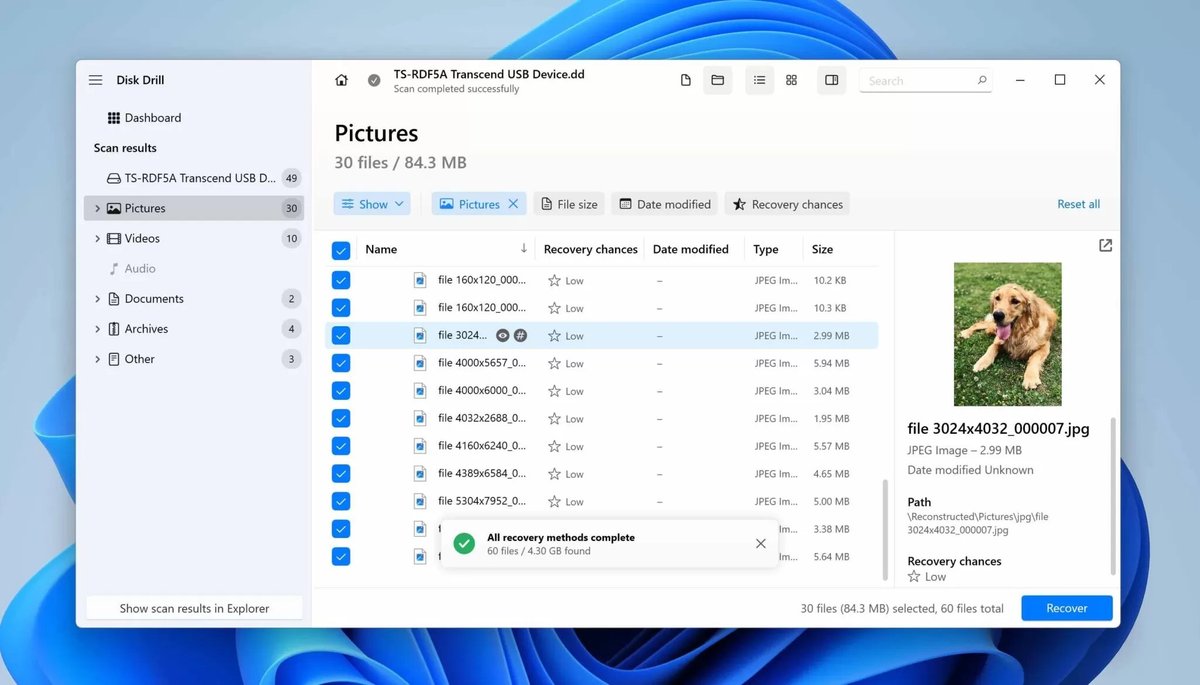
- Prioritize Data Recovery: This step cannot be overstated. Before you try anything that might alter the disk's structure, use a reliable data recovery tool. Scan the inaccessible drive, preview your lost files, and carefully save them to a different, safe storage location. This ensures you have a backup before proceeding with any potential data-erasing solutions.
For a thorough walkthrough of these initial assessment techniques and basic troubleshooting strategies, our guide on Initial Diagnosis & Basic Troubleshooting offers invaluable insights.
Troubleshooting I/O Device Errors: A Step-by-Step Approach
Once your data is secure, you can begin troubleshooting the I/O error itself. We'll start with the simplest, least destructive fixes and progress towards more involved solutions.
Address Connection & Hardware Basics
Often, the fix is simpler than you think. A minor hiccup in how your device connects to the computer can manifest as an I/O error.
- Restart Your Computer: Sometimes, a simple reboot can resolve temporary system glitches that cause communication errors.
- Inspect and Secure Connections: Power down your computer. Carefully check all SATA/USB cables connected to the problematic storage device and your computer. Ensure they are snugly fitted and free from any visible damage.
- Try Different Ports and Cables: If possible, swap out the cable for a new one or try connecting the device to a different USB or SATA port on your computer. Faulty ports or cables are surprisingly common culprits.
- Minimize Device Interference: Disconnect any other non-essential external devices. Sometimes, electrical signal crosstalk or power demands from multiple peripherals can interfere with the problematic drive.
- Test on Another Computer: If you have access to another PC, try connecting the inaccessible disk there. This helps determine if the issue lies with the disk itself or with your original computer's hardware or software.
Resolve Operating System & Driver-Related Issues
Windows relies on specific drivers and settings to communicate with your hardware. Issues here can easily trigger an I/O error.
6. Reinstall or Update Disk Drivers: Outdated or corrupted drivers are a frequent cause.
- Reinstall: Right-click the Start button and select "Device Manager." Expand "Disk drives," right-click on your affected disk, and choose "Uninstall device." Restart your computer, and Windows should automatically reinstall a fresh driver. If it's an external drive, you can also try disconnecting and reconnecting it after uninstalling.
- Update: Go to Settings > Update & Security > Windows Update > Check for updates. Click "View optional updates," navigate to the "Driver updates" tab, select the relevant driver for your device, and click "Download and install."
- Perform a Clean Boot of Windows: This helps identify if background programs or third-party drivers are conflicting with your storage device.
- Search for "MSConfig" (System Configuration) in the Start menu.
- In the "Services" tab, check "Hide all Microsoft services," then click "Disable all."
- Go to the "Startup" tab, click "Open Task Manager," and disable all startup items.
- Restart your computer and check if the I/O error persists.
- Scan for Viruses and Malware: Malicious software can sometimes interfere with system operations, including disk I/O.
- Connect your external drive if applicable.
- Launch your antivirus software (e.g., "Virus & Threat Protection" in Windows Security) and run a full system scan.
- After the scan, reboot your computer and reconnect the drive.
- Change Hard Drive Transfer Mode: An incompatible transfer mode can cause communication problems.
- Open Device Manager.
- Expand "IDE ATA/ATAP I controllers."
- Right-click the relevant IDE channel (often "Secondary IDE channel"), go to "Properties," and then to the "Advanced Settings" tab.
- Locate "device 0" and change its "transfer mode box" setting to "PIO Only." Click OK.
For more in-depth solutions concerning operating system interactions and driver management, our detailed guide on Operating System & Driver-Specific I/O provides valuable information.
Tackle Disk Structure and File System Problems
If the basic checks don't work, the issue might be deeper, within the disk's file system or partition structure. This is where you'll be primarily looking to Resolve I/O errors in storage devices like HDDs, SSDs, and USB drives.
10. Check and Repair Drives via Command Prompt (CHKDSK): This tool can find and fix file system errors and bad sectors.
- Open Command Prompt as administrator.
- Type
chkdsk X: /f /r(replaceXwith your problematic drive's letter) and press Enter. - Be aware: While CHKDSK attempts to recover data from bad sectors, some data might be permanently lost during this repair process.
- Change the Drive Letter: Sometimes, a drive letter conflict can confuse Windows.
- Right-click Start and select "Disk Management."
- Right-click the volume experiencing the error, choose "Change Drive Letter and Paths," then click "Change."
- Select a new, unused drive letter from the list and confirm your choice.
Solutions Requiring Data Eradication (Use Only After Data Recovery)
These steps are powerful but will erase all data on the disk. Only proceed if your data is safely recovered or if the disk contains no critical information.
12. Initialize the Disk (for "Unknown/Not Initialized" Disks): This prepares a brand-new or problematic disk for use.
- Warning: This will erase all data.
- Open Command Prompt as administrator.
- Type
diskpartand press Enter. - Type
list diskand press Enter. Carefully identify your problematic disk by its size. - Type
select disk #(replace#with the correct disk number). - Type
clean. - Type
convert gptorconvert mbr(choose based on your system's needs, GPT for modern systems). - Type
create partition primary. - Type
format quick fs=ntfs(orfat32for smaller, older drives). - Type
assign. - Type
exit.
- Format the Hard Drive (for "RAW" Drives): Formatting rebuilds the file system, making a RAW drive usable again.
- Warning: This will erase all data.
- Via Disk Management: Right-click Start > Disk Management. Right-click the RAW drive, select "Format," set a volume label and file system (e.g., NTFS), and confirm.
- Via File Explorer: Open File Explorer, right-click the inaccessible disk, choose "Format," set the label and file system, then click "Start."
- Via Partition Manager Tool: Third-party tools can also format partitions; select the partition, choose "Format Partition," specify a label and file system, and apply changes.
Addressing I/O Errors Beyond Standard Storage
While this guide focuses heavily on hard drives, I/O errors aren't limited to them. You might encounter similar issues with optical drives (CD/DVD/Blu-ray), external card readers, or other peripherals. For specific troubleshooting steps tailored to these devices, consult our guide on Fixing I/O Errors in Optical. The principles of checking connections, updating drivers, and testing on another system often still apply, but with device-specific nuances.
When All Else Fails: Consider Replacement
If you've diligently worked through all these troubleshooting steps and your disk remains inaccessible, unreadable, or consistently throws I/O errors, it's highly probable the device has suffered significant physical or logical damage beyond repair. In such cases, the most reliable solution is to replace the faulty disk. If it's a brand-new drive, check its warranty for a free replacement. For older drives, invest in a new, reliable storage device to prevent future data loss and ensure system stability.
Moving Forward: Safeguarding Your Digital Life
An I/O device error is a stark reminder of how fragile digital data can be. To protect yourself from future headaches:
- Backup Regularly: Make it a habit to back up important files to multiple locations—cloud storage, another external drive, or a network-attached storage (NAS). This is your ultimate safeguard against unexpected drive failures.
- Handle Devices with Care: Avoid sudden disconnections, especially during data transfers. Protect external drives from drops and extreme temperatures.
- Choose Reputable Hardware: When purchasing new storage devices, opt for well-known, reliable brands. While even the best drives can fail, quality hardware generally offers better longevity and performance.
By understanding the causes and knowing the systematic steps to troubleshoot, you can tackle "I/O device errors" with confidence, recovering your data and restoring your system's functionality.